One Platform, Start to Finish: The Working Creator Series. Week 1 of 12.
Most podcasters I talk to are not stuck because of their content. They are stuck because of a decision they made in week one and now feel trapped by.
They picked a host quickly, before they knew what mattered. Or they have been meaning to start for months and the setup makes it look harder than it is. Either way the fear is the same. If I touch the hosting, I will break the show and lose the listeners I already have.
You will not, if you do it in the right order. Hosting looks technical from the outside. Underneath, it is one simple idea and a short checklist.
The one idea: your feed is your show
Your podcast does not really live inside Apple Podcasts or Spotify. Those apps read a feed, a single file that lists your show details and every episode, and they check it for updates. When you publish an episode, you are updating that feed. When a listener subscribes, they are subscribing to that feed.
That is good news, for two reasons.
First, starting is mostly a one time setup. Create the show, fill in the basics, submit the feed once to the places people listen, and after that you just publish episodes.
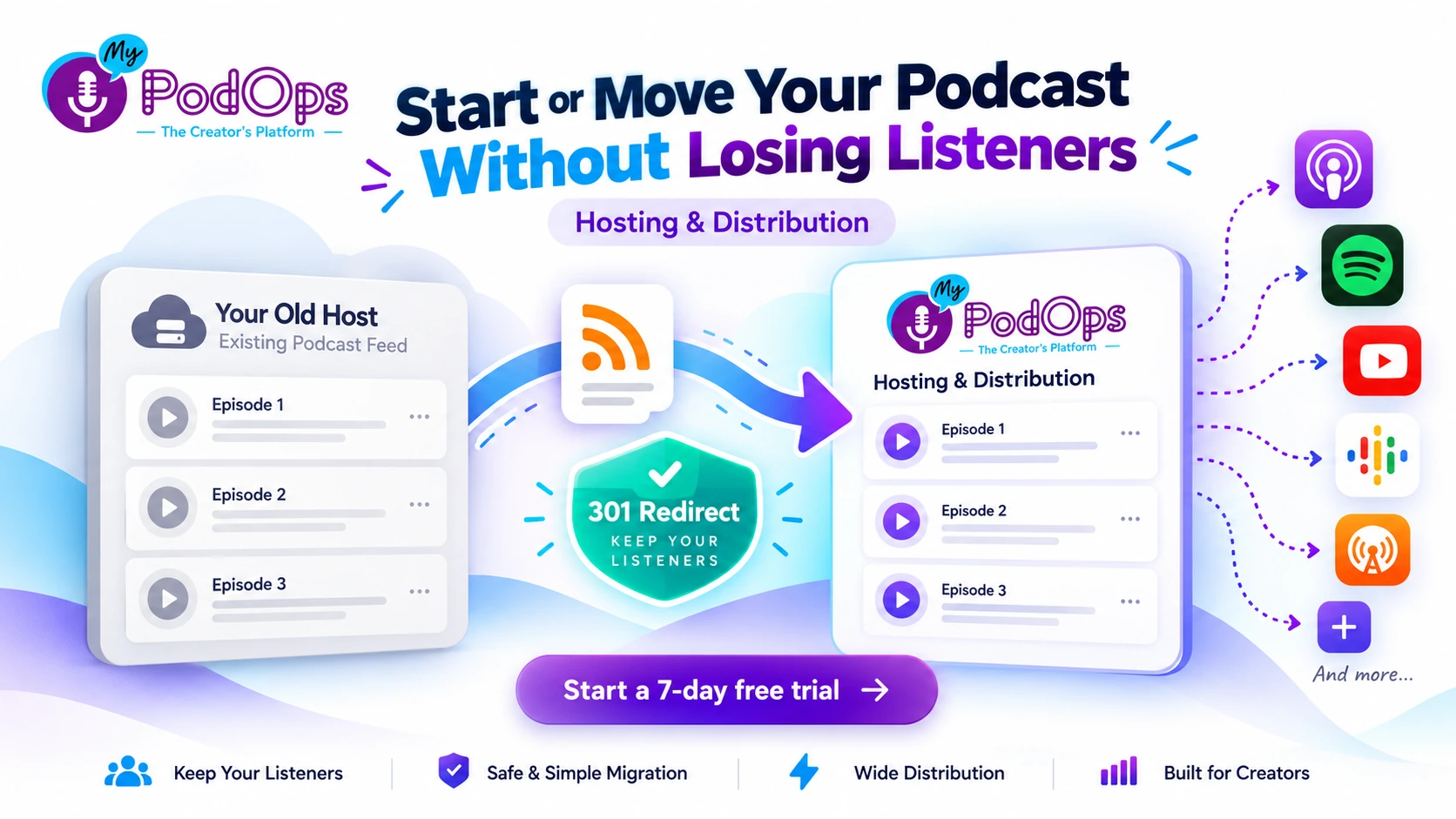
Second, moving is not starting over. A feed can point somewhere new. There is a standard way to tell every app, in effect, this show has moved, follow it over here. It is called a 301 redirect, and it is the whole ballgame in a host move. Get the redirect right and your subscribers come with you without doing anything at all.
Starting a new show: the launch checklist
Work through this in order and you will not miss the parts people usually forget until launch day.
- Lock the basics first. Show name, a short description that says who it is for, your category, and artwork that still reads clearly at a tiny size. Decide whether the show is explicit, and use the same wording everywhere.
- Create the show in your host. Add the details above and confirm how your name and episode titles will appear in the apps. This is your feed, so read it the way a stranger would.
- Record a trailer or a first episode. A short trailer gives the directories something to approve and gives early listeners a way to subscribe before episode one lands.
- Submit the feed once. Send it to Apple Podcasts, Spotify, Amazon Music and iHeart. Approval times vary by platform, so submit before you announce a launch date, not the day before.
- Test it like a listener. Find your show in at least two apps, subscribe, and play the trailer all the way through. Check that the artwork, title and description look right on a phone.
- Publish episode one, then check your numbers after a day or two. You want to confirm episodes are showing up everywhere and plays are being counted before you build a promotion plan on top of it.
That is it. Everything else, recording, editing, clips, a website, an email list, gets easier once the feed is live, and we will work through all of it in this series.
Moving hosts: the move checklist
If you already have a show, this is the version that protects it. Do not skip steps and do not rush the timing.
- Before you change anything, save your current details. Download or copy your episode list, your show description, your artwork, and your current feed address. Take a screenshot of your analytics totals. If anything looks odd after the move, you want a record of how it looked before.
- Import your feed into the new host. On MyPodOps, you import your existing RSS feed and your episodes come across. Check the import carefully. Every episode should be there, in order, with the right titles, audio and publish dates.
- Compare the old feed and the new feed side by side. Same show name, same episode count, same audio files. The most common move problems are boring ones: a missing episode, a duplicated episode, or an old episode with the wrong date that suddenly looks brand new.
- Set the 301 redirect on your OLD host. This is the step that matters most, and it happens at the place you are leaving, not the place you are joining. The redirect tells every app and every subscriber that the feed has permanently moved to the new address. Most hosts have this in their settings, often called "redirect feed" or "move podcast". Importing your episodes without the redirect is the one mistake that really can cost you listeners, because the apps keep checking the old, frozen feed.
- Keep your old hosting account open. Leave it active for at least a few weeks after the move. The redirect needs the old feed to stay reachable while Apple, Spotify and the smaller apps pick up the change. Closing the old account on move day can break the very redirect you just set.
- Verify in the apps, not just in your dashboard. Subscribe to your own show in Apple and Spotify, download an older episode, then publish your next episode on the new host and confirm it appears everywhere. If a new episode shows up in every app, the move worked.
- Watch your numbers for a week. Plays may wiggle for a day or two as platforms catch up. What you are looking for is simple. Episodes are updating, downloads are still being counted, and nothing has flatlined. A week of normal numbers is your sign that you can close the old account when you are ready.
Three mistakes that cause almost every bad move
Moving in a hurry. Creators do this on the same day they fall out with their old host. Slow down by 48 hours and work the checklist. Almost every horror story is a skipped step, not a technology failure.
Redirecting to the wrong feed. If you run more than one show, double check that each redirect points at that show's new feed. It sounds obvious. It is also an easy, quiet mistake to make when you are moving several shows in one sitting.
Telling listeners they need to re-subscribe. If the redirect is right, they do not. Asking anyway creates confusion and some people will not bother. Say nothing, publish as normal, and let the redirect do the work. Your job is to make the move invisible.
Where MyPodOps fits
We built MyPodOps so hosting is one part of one platform, not a separate tool you have to connect to everything else. Hosting supports multiple shows, with unlimited episodes and storage on eligible plans, and streamlined distribution to Apple, Spotify, Amazon and iHeart. When you move, the RSS import brings your show across, and our team will walk the redirect step with you so you keep your listeners.
From there the rest of your work sits in the same place. Record in Studio, edit and clip with the AI Creator Suite, put the show on your own website, and grow the audience you own with email and text. That is the point of this series. Over the next twelve weeks we will work through the whole platform, one job at a time, in the order a creator actually does them.
If you are starting, start properly. If you are stuck on a host you have outgrown, move properly. Either way, do not let a feed hold your show hostage.
Start a 7-day free trial, import your feed, and work the checklist above with us.
Next week: recording. The remote session setup that makes a guest across the country sound like they are sitting next to you.