One Platform, Start to Finish: The Working Creator Series. Week 2 of 12. Last week: start a show, or move one, without losing a single listener.
Your listeners can forgive a lot. They will forgive a tangent, a dog in the background for two seconds, and an opinion they disagree with. What wears them down is an hour of one voice loud and clear and the other voice thin, echoing, and half a second behind.
That is not a talent problem. It is a setup problem, and it is decided in the first five minutes of a session, before anyone says anything worth keeping.
The good news is that remote recording has a short list of things that actually matter. Get those right and a guest across the country sounds like they are sitting at the same table. Get them wrong and no amount of editing fully fixes it later.
The one idea: record each person where they are
Most bad remote audio starts the same way. One recording captures the whole call, mixed together, after the internet has already squeezed it. If the connection stutters, the recording stutters. If your guest is quiet and you are loud, that imbalance is baked in for good.
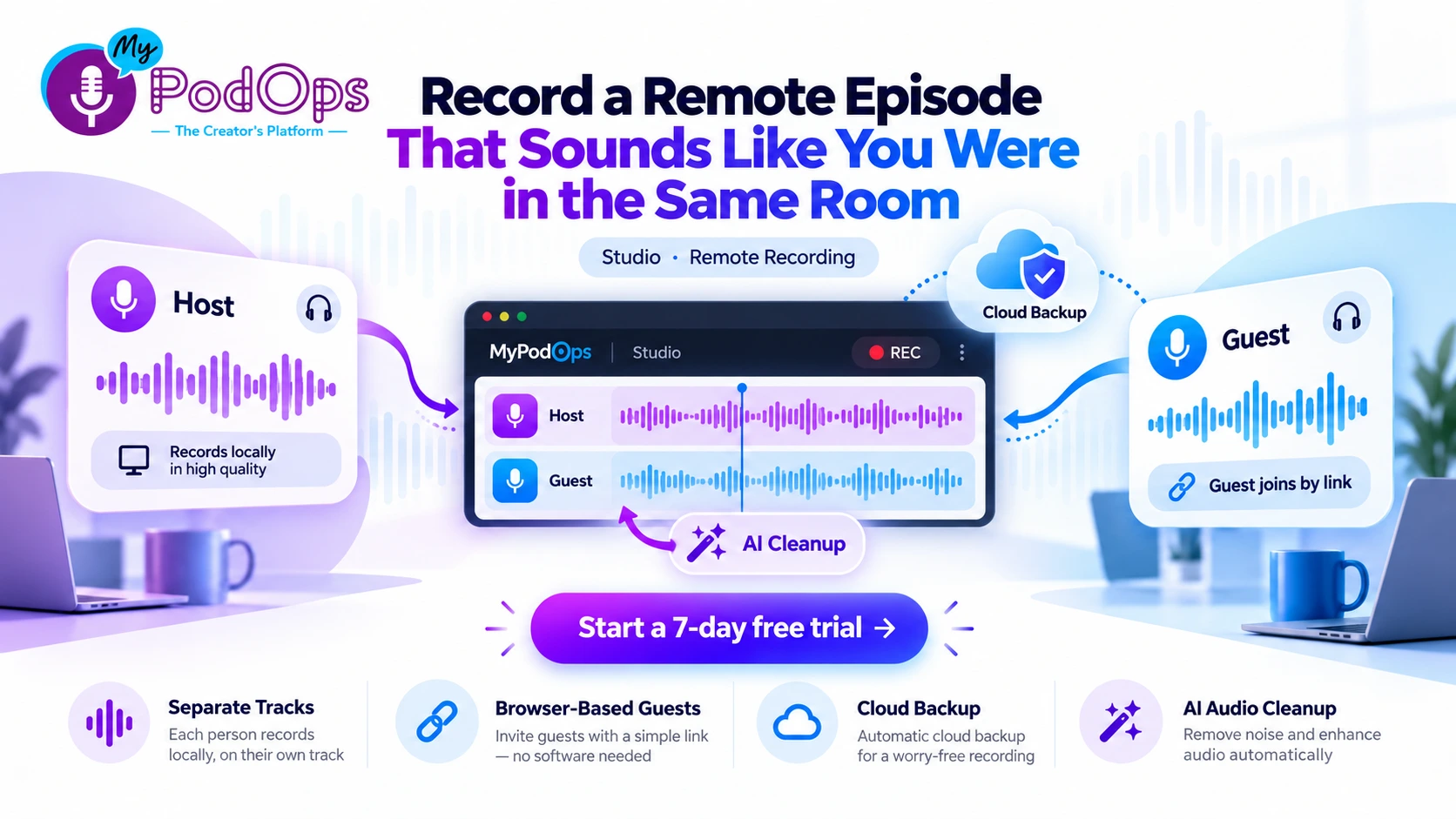
The fix is to record each speaker separately, on their own track, as close to their own microphone as possible. Then a stutter on the call does not have to be a stutter in the episode, a quiet guest can be brought up without bringing up your room noise too, and your editor, human or AI, has something real to work with.
Everything else in this post is just making that one idea easy to pull off with a guest who is not technical and does not want to be.
Send this to your guest before the session
This is the giveaway for this week. Copy it, paste it into the invite email or message you already send, and most of your audio problems disappear before the session starts.
Guest pre-flight checklist
- Open the link once before the day. Your invite link opens in a browser and there is nothing to install. Click it ahead of time, let it ask for microphone access, and check that you can see and hear yourself. Doing that the day before, rather than in the first five minutes of the session, is the single biggest favor you can do both of us.
- Plug in headphones. Any wired pair is fine. Headphones stop your voice coming out of the speakers and leaking back into the guest microphone, which is where most echo comes from.
- Get the microphone close. If there is an external mic, use it. If not, stay close to the built in mic and do not lean away when you think. Distance is the number one cause of that far away, roomy sound.
- Pick a soft room. A room with curtains, carpet, books, or a closet full of clothes beats a bare kitchen every time. Hard flat walls bounce sound back at the mic.
- Close the extras. Shut other tabs and apps, turn on Do Not Disturb, silence notifications, and close the door. A phone call or a buzzing alert will land on the recording. Tell anyone nearby that you are recording for the next hour.
- Stay in one place. Do not walk around with the device, do not tap the desk near the mic, and keep water and notes within reach so you are not reaching across it.
- Open the link five minutes early. We will do a quick sound check first. If something sounds off, those five minutes are when we can still fix it.
That last line matters. Guests worry about wasting your time. Telling them the early join is part of the plan makes them actually do it.
The five minute routine when the session starts
Do the same thing every time, in the same order, and say it out loud so the guest relaxes.
- Check levels one at a time. Have your guest talk at the volume they will actually use, not a careful test voice. Watch their track while they speak. You want a steady, healthy level with room to spare when they laugh or make a point.
- Listen for the room, not just the voice. Echo, a fan, a buzzing light, a loud air conditioner. Ask about anything you hear, because the guest usually stopped noticing it an hour ago. Moving six feet often fixes what settings cannot.
- Confirm the backup plan out loud. Tell them the session records each of you on a separate track and backs up to the cloud, so a dropped connection does not mean a lost episode. Guests who trust the setup stop performing for the technology and just talk.
- Agree on the pause. Tell them that if anything goes wrong, a doorbell, a dropped connection, a sentence that came out wrong, they can just stop, breathe, and start that thought again. You will clean it up in editing. This one sentence improves more interviews than any microphone.
- Start with an easy first question. Not the big one. Give them a minute of talking at normal energy so their real voice and level are on the track before the answers that matter.
When a guest connection is weak
It will happen. Here is the order to try things, from least disruptive to most.
First, stop asking the connection to do work the audio does not need. Close anything else on the phone that is uploading, downloading, or streaming in the background, and keep talking. The episode your listeners hear is the audio.
Second, get closer to the Wi-Fi. Moving into the same room as the router, or stepping away from a crowd of other devices, fixes more sessions than any setting.
Third, keep recording and mark the spot. If a stretch breaks up, do not panic and do not recap the whole answer. Note the time, let them finish, then ask the one question again cleanly at the end. Because each speaker is on a separate track, a clean retake drops in without touching your side of the conversation.
Fourth, if the connection dies completely, reopen the same invite link and rejoin. Do not start a new plan in a panic. The cloud backup means what you already recorded is still there. Rejoin, do a ten second level check, and pick up at the last clean question.
Last resort, reschedule the back half, not the whole episode. If you got thirty good minutes, keep them. A shorter finished episode beats a full session of audio your listeners have to fight through.
Where MyPodOps fits
Studio in MyPodOps is built around exactly this workflow. You host from the MyPodOps app on iPhone or Android, so there is no separate program to learn and no laptop required on your side. Your guest does not install anything at all. You send one link, it opens in their browser, and up to 10 participants can join. Each speaker records on a separate track, sessions back up to the cloud, and AI audio cleanup can take out noise, fillers and silences after the fact. A desktop app is coming soon, for creators who prefer to host from a desk.
That last part is a safety net, not a strategy. Cleanup works best on a recording that was already decent, which is why the five minutes before you press record matter more than anything you do after. And because Studio sits inside the same app and platform as your hosting, editing and clips, the episode does not get downloaded, emailed to yourself, and re uploaded three times. It is already where the next steps happen. We get into that editing pass in Week 4.
Next time your guest apologizes for sounding bad on other shows, send them the checklist above a day early. You will hear the difference before they finish their first answer.
Download the MyPodOps app for iPhone or Android, record your next episode in Studio on a 7-day free trial, and send your guest the link and the pre-flight checklist together. They will not need to install a thing.
Next week: staying in the app after the recording ends. Trimming, clipping and publishing a finished episode from your phone, when you are nowhere near your desk.